How to Export Leads
Written By Alex Mercer
Last updated About 2 months ago
Once you have unlocked events and revealed emails, you can export your leads to a CSV or Excel file for use in your CRM, email tool, or outreach workflow.
What Can Be Exported
Unrevealed contacts are included in the export with all fields except email. If you want emails in the export, reveal them first using Credits.
How to Export
- Open an unlocked event and go to the Attendees tab.
- Use filters to narrow the list if needed (by job title, company size, etc.).
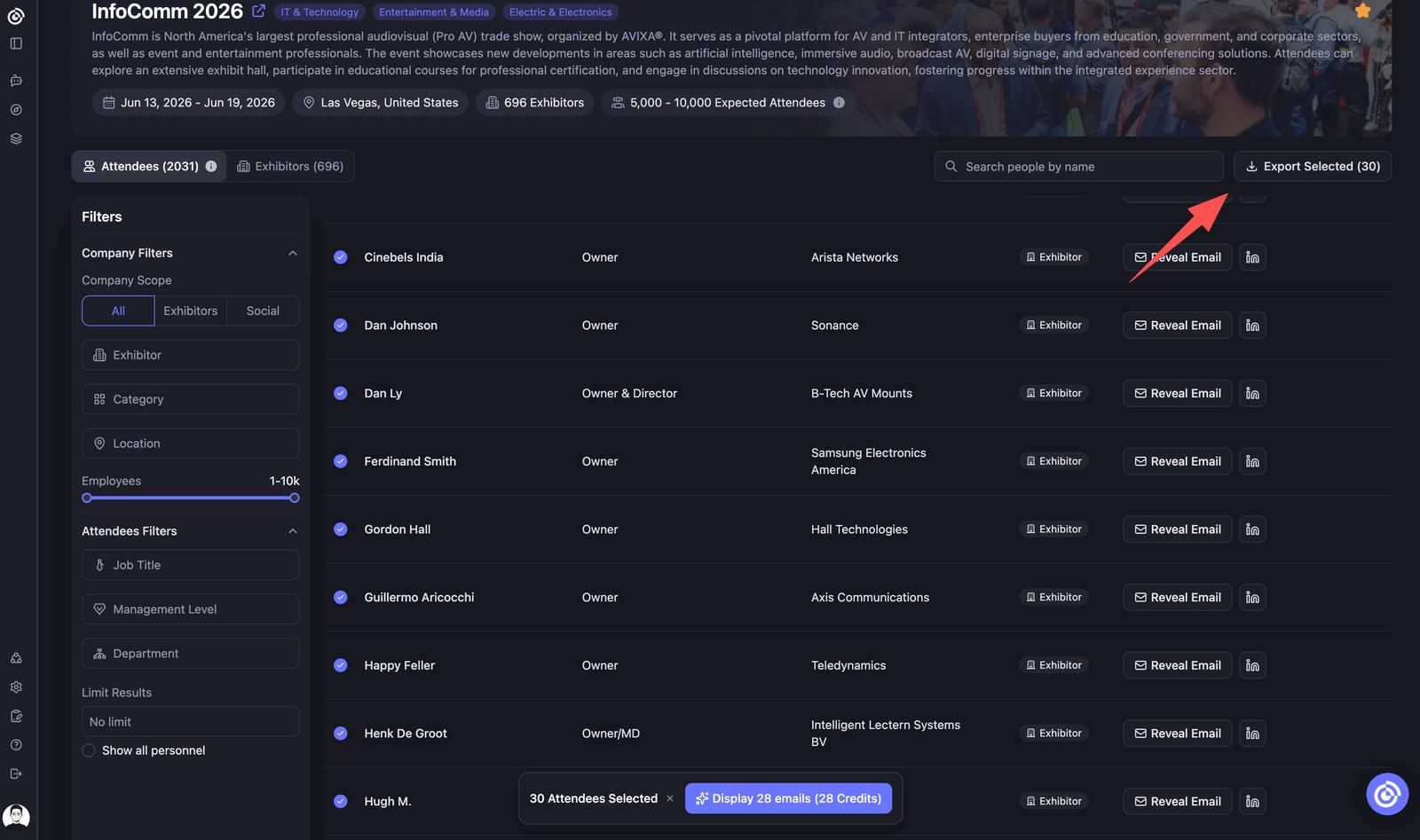
- Optionally select specific contacts using the checkboxes.
- Click Export Selected in the top-right corner.
- Choose your scope:
- Selected Items — exports only the contacts you checked
- All Filtered Data — exports all contacts matching your current filters
- Choose your format: CSV (.csv) or Excel (.xlsx).
- Click Export. The file downloads immediately.
Export Format
The CSV uses comma separation with UTF-8 encoding. Column headers are in English. The file is compatible with all major CRMs and email platforms (HubSpot, Salesforce, Apollo, Instantly, etc.) without preprocessing.
Tips
- Export before your subscription expires. Even after expiry, previously unlocked data remains accessible and exportable.
- If you are exporting to HubSpot or Salesforce, use the Company website field as the deduplication key to avoid creating duplicate company records.
FAQ
Q: Can I export contacts without revealing their emails?Yes. Contacts can be exported without email addresses. Only previously revealed emails appear in the export.
Q: Does exporting consume Credits?No. Exporting to CSV or Excel is always free.
Q: Can I export only a filtered subset of contacts?Yes. Use the filters first, then choose All Filtered Data or manually select rows and use Selected Items.