Generate Outreach Messages
Lensmor can generate event-aware outreach messages for selected contacts.
Written By Alex Mercer
Last updated 3 months ago
Last updated: July 17, 2026
Lensmor can generate event-aware outreach messages for selected contacts.
Use this workflow after you have found relevant contacts and reviewed their company, role, event context, and available signals.
Supported message types
Lensmor can generate:
Email subject and body.
LinkedIn InMail.
LinkedIn Connection Note.
LinkedIn Connected Message.
Generated emails can include a subject, body, and signature. The three LinkedIn message types are designed for different connection scenarios:
InMail. Use this when you are not connected to the contact and plan to reach them through LinkedIn InMail. The result includes an InMail subject line and message body.
Connection Note. Use this as the short note attached to a LinkedIn connection request.
Connected Message. Use this when the contact is already in your LinkedIn network and you want to start or continue a direct conversation.
Choose the message type that matches your actual relationship with the contact. Review and edit every generated message before using it.
How to generate outreach
Open an event.
Go to Attendees.
Select up to 100 contacts.
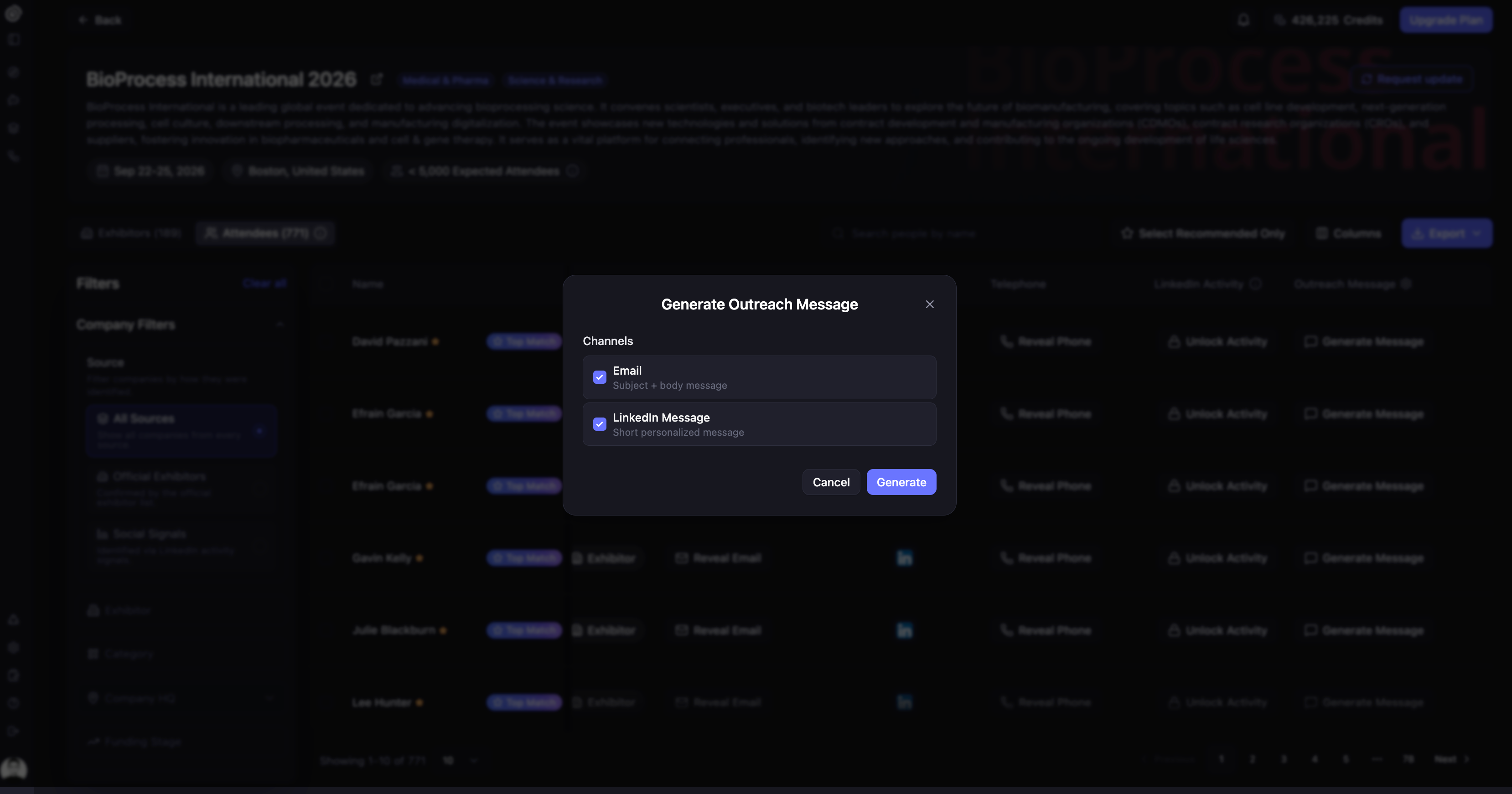
Select Generate Outreach Message.
Choose Email or a LinkedIn message type.
For LinkedIn, select InMail, Connection Note, or Connected Message based on how you plan to contact the person.
Select Generate.
Review the generated copy before using it.
Credit cost
Generating outreach messages does not consume Credits.
You may still need access to the event and contact rows you want to use. Email and phone reveal actions are separate from outreach message generation and may consume Credits when Lensmor returns a result.
Why this message
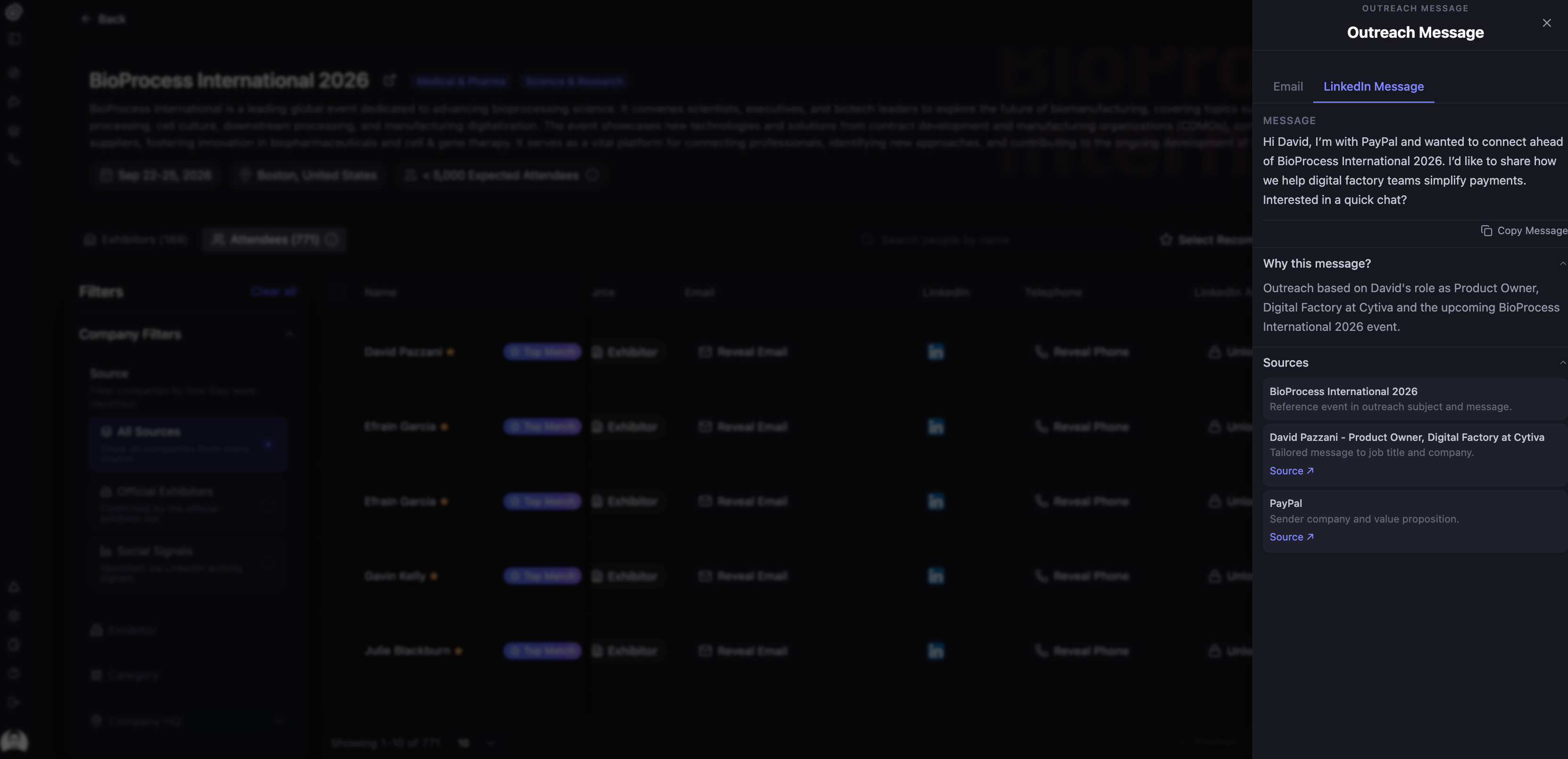
After generation, Lensmor opens an Outreach Message side panel. Generated email messages can include:
A subject line.
Body copy.
A signature.
A Why this message section.
Sources used to generate the message.
Use Why this message to understand which event, company, role, or signal context Lensmor used when creating the message.
If sources are shown, review them before using the message in a live campaign.

LinkedIn message types
If you generate LinkedIn outreach, the side panel shows the selected LinkedIn message type:
InMail includes a subject line and a message body for an InMail conversation.
Connection Note is intentionally short so it can accompany a connection request.
Connected Message is written for a contact who is already connected to you.
The panel can also show Why this message and Sources for the LinkedIn version. These sections explain the event, company, role, or signal context used to generate the draft.
Lensmor does not know whether your LinkedIn relationship changed after the contact data was collected. Confirm the current connection status before choosing or sending a message.
Exporting generated messages
Generated outreach can be used in export workflows:
CSV: Export generated email and LinkedIn message fields for review or use in another workflow.
HubSpot: Export contact data and supported generated-message fields to your CRM.
Salesforge: Export contacts and optional sequence assignment. Lensmor can provide email variables such as
{{lensmor_email_subject}}and{{lensmor_email_body}}; LinkedIn field mapping depends on the selected message type and current integration fields.Instantly: Export contacts and email outreach content to a selected campaign. Lensmor can provide values for variables such as
{{lensmor_email_subject}}and{{lensmor_email_body}}.
InMail, Connection Note, and Connected Message can be copied individually and are supported in CSV, HubSpot, and Salesforge workflows when the corresponding destination fields are available. Review the field mapping before starting a live campaign.
Your Salesforge or Instantly templates must reference the variables you want to use.
Best practices
Treat generated copy as a draft, not an approved final message.
Check role, company, source, and event fit before sending.
Edit for your voice, offer, and compliance requirements.
Do not send outreach to contacts where you lack a lawful basis to contact them.
Was this helpful?
Still need help? Share an idea