Find Events and Companies
Use Discover to find trade shows, conferences, and event-led GTM opportunities.
Written By Alex Mercer
Last updated 3 months ago
Last updated: July 24, 2026
Use Discover to find trade shows, conferences, and event-led GTM opportunities.
Lensmor supports two main discovery modes:
- Search by Name: Find an event by event name.
- Search by Exhibitor: Enter a company name to find events where that company appears in Lensmor's exhibitor data.
Search by event name
Use Search by Name when you already know the event you want to research.
- Go to Discover.
- Select Search by Name.
- Enter an event name, such as
IFA Berlin 2026. - Review the matching event suggestions.
- Open the event result to review details, exhibitors, attendees, and available signals.
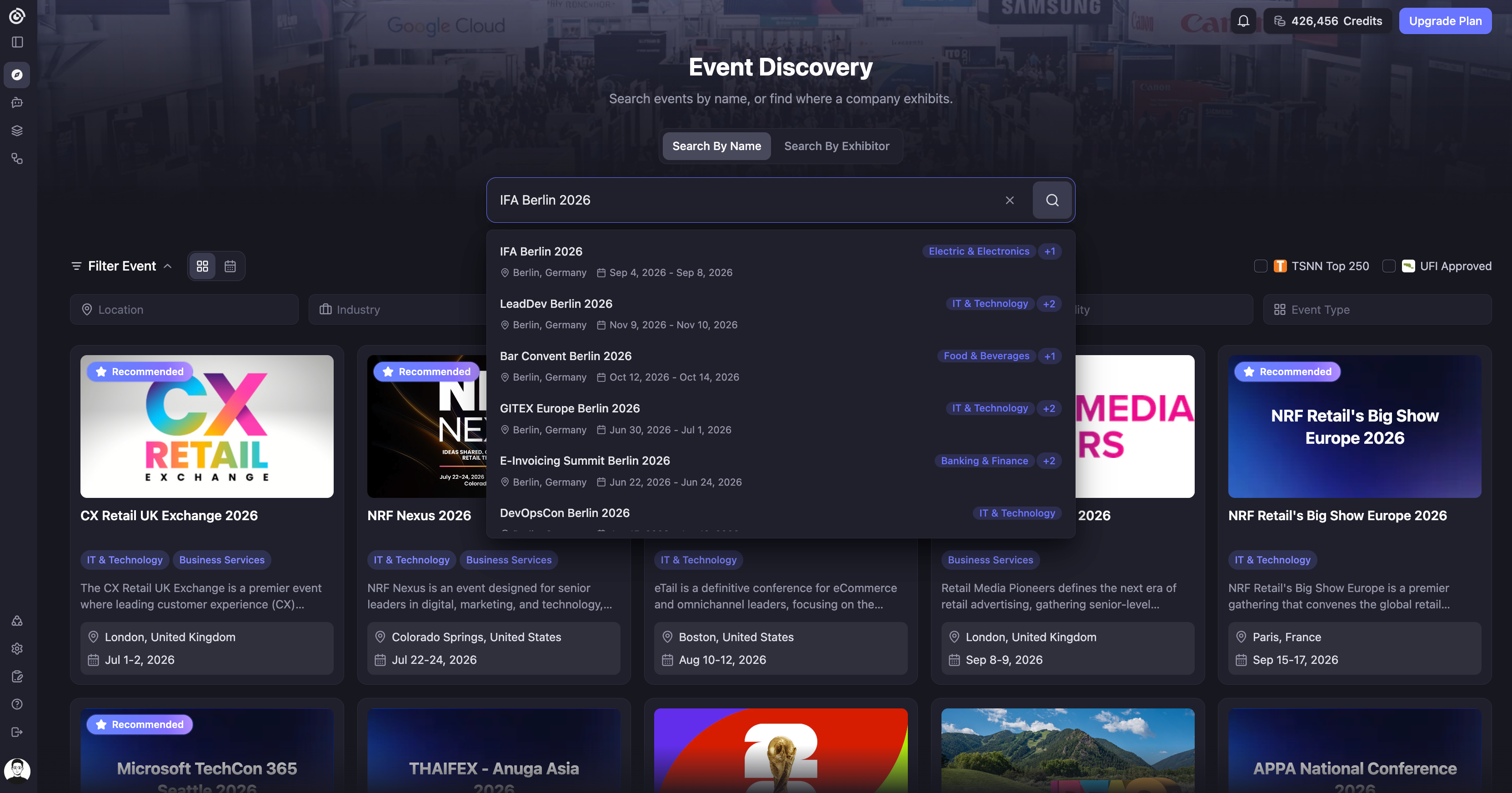
Search suggestions can include event name, location, date range, and category tags. Use these details to pick the right event before opening the event page.
Search by Name does not consume Credits. It is useful for checking a known event before deciding whether you need Event Access or Full Access with available Visitors.
Search by exhibitor
Use Search by Exhibitor when you want to know where a company, competitor, partner, or target account is showing up.
- Go to Discover.
- Select Search by Exhibitor.
- Enter a company name.
- Review the events Lensmor finds for that company.
- Open relevant events to evaluate fit.
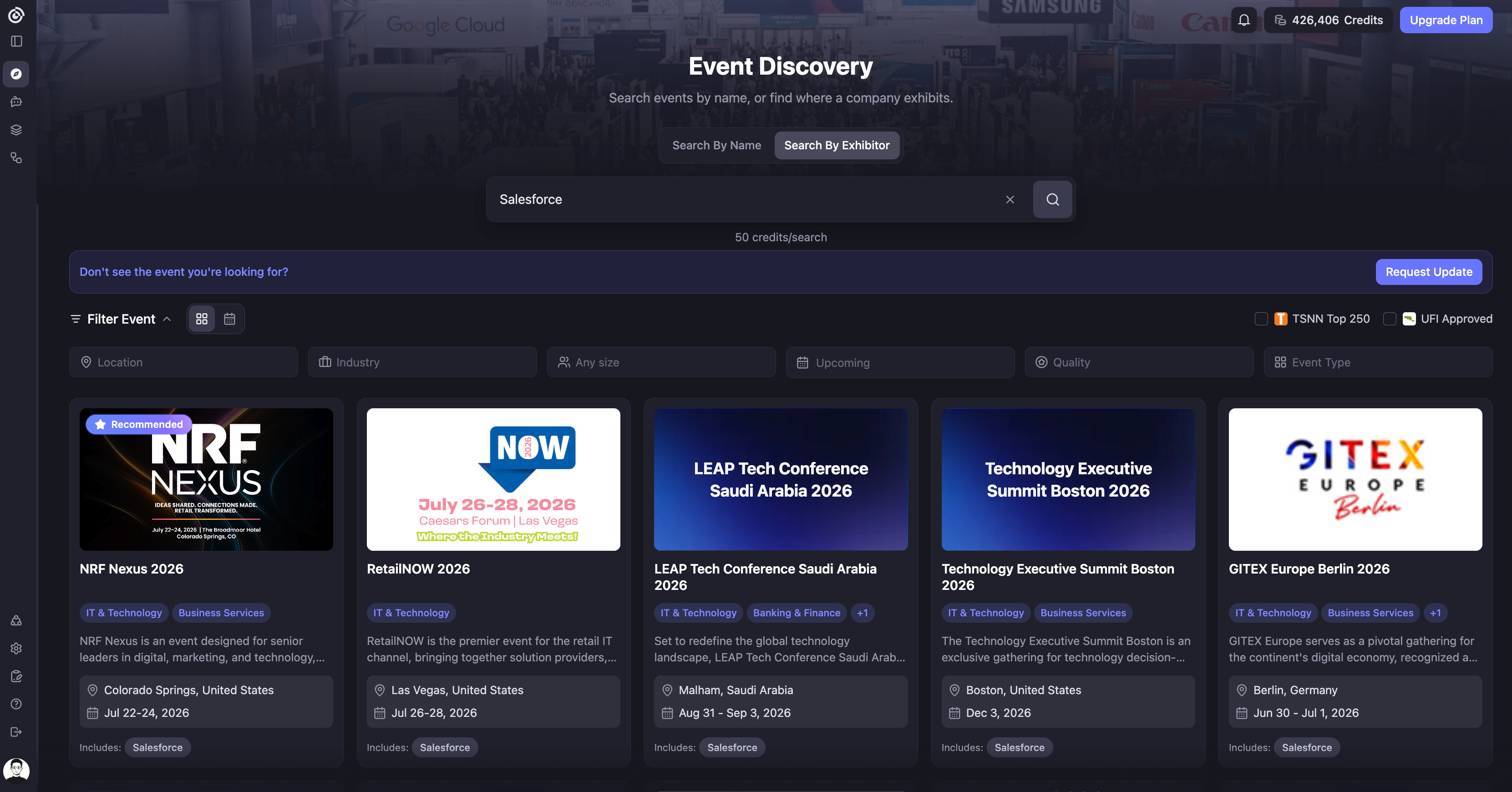
Search by Exhibitor costs 50 Credits only when Lensmor returns at least one matching result. If the search returns no results, no Credits are deducted.
The result cards show events associated with the company you searched. When available, the card can show an Includes label, such as Includes: Salesforce, so you can see why the event matched your search.
If you do not see the event you expected, use Request Update to ask Lensmor to refresh or add the event data.
Browse events in list or calendar view
Use the view selector in Discover to switch between two ways of reviewing events:
- List view. Scan event cards, compare event details, and work through a filtered shortlist.
- Calendar view. Review upcoming events by date, identify schedule conflicts, and plan event coverage across a month or quarter.
Filters remain useful in both views. Use the calendar after narrowing the event set when you want a clearer view of timing and overlapping shows.
Filter event discovery
Combine filters to narrow Discover to the events that fit your market and planning criteria. Current filter options include:
- Location. Select one or more countries, regions, or cities where you want to find events.
- Industry. Select multiple industries when your ICP spans more than one market.
- Attendee size. Focus on event-size ranges that match your coverage or budget.
- Event type. Narrow the results to formats such as trade shows, conferences, expos, summits, and other supported event types.
- Quality. Use Lensmor's quality filters to focus on more strongly curated event records.
- Date. Review upcoming events or switch to past events when you need historical research.
- UFI and TSNN labels. Filter for UFI-certified shows or TSNN Top 250 events when those labels are available.
Several filters support multiple selections, so you can compare markets without running separate searches. If the result set becomes too narrow, remove one filter at a time to see which condition is excluding events.
UFI and TSNN labels are useful authority signals, but they do not guarantee that an event matches your ICP or that Lensmor has complete exhibitor and attendee coverage. Review the event record before deciding whether to unlock it.
Recommended events
If you completed onboarding, Lensmor may mark some events with a Recommended badge. This means the event appears relevant to your company profile. It does not mean the event is guaranteed to be the best option for your campaign.
Use the badge as a starting point, then review the event details before unlocking or exporting data.
Tips for better results
- Try the company brand name and legal name if results look incomplete.
- Search subsidiaries, parent companies, and product brands separately.
- Combine location, industry, attendee-size, event-type, quality, and date filters to build a focused shortlist.
- Use UFI and TSNN labels when you want to start from established industry event lists.
- Switch to Calendar view after filtering when dates and schedule conflicts matter.
- Open the event detail page before unlocking so you can confirm the event is relevant.
- If the search returns results but does not include the event you expected, try another company-name variant or use Request Update. Searches that return no results do not consume Credits.
Why results can vary
Event and exhibitor data depends on what organizers publish and what public sources are available. Some events publish exhibitor lists early, some publish them close to the event date, and some never publish a complete public list.
Was this helpful?
Still need help? Share an idea