Connect Attio to Lensmor
Connect Attio to sync Deal data into Lensmor, control CRM visibility, and export Lensmor contacts to Attio.
Written By joyce
Last updated 17 days ago
Last updated: November 2, 2026
Connect Attio to Lensmor to do two things: sync Attio Deal context into Lensmor so you can prioritize event companies, and export selected or filtered Lensmor contacts to Attio. These are separate actions. Connecting an account never exports contacts automatically.
Before you start
A Workspace owner or admin must first connect one Attio Workspace for the Lensmor Workspace.
After the Attio Workspace is connected, each Lensmor Workspace member connects their own Attio user from that same Workspace.
Your Attio Workspace must have the standard Deals object enabled.
Your Attio user needs permission to read and write records, read object configuration, and read Workspace members.
Your Lensmor plan must include export access to export contacts to Attio.
Hidden contact details remain hidden in an export unless you reveal them first. Revealing contact details is a separate action.
How Attio connections work
Lensmor separates the Workspace Attio Workspace from each member's personal Attio connection:
Workspace CRM: The Attio Workspace approved for the Lensmor Workspace. Owners and admins can connect or change it.
Personal connection: The Attio user authorized by an individual Lensmor Workspace member. It controls which Deals that member can sync and which Lensmor contacts they can export.
The same personal connection works across Lensmor features and Lensmor Agent. Each connection, CRM snapshot, and visibility setting is isolated by Workspace and user. Connecting your account does not expose your Attio credentials or private CRM data to every Lensmor Workspace member.
1. Connect the Attio Workspace (owner or admin)
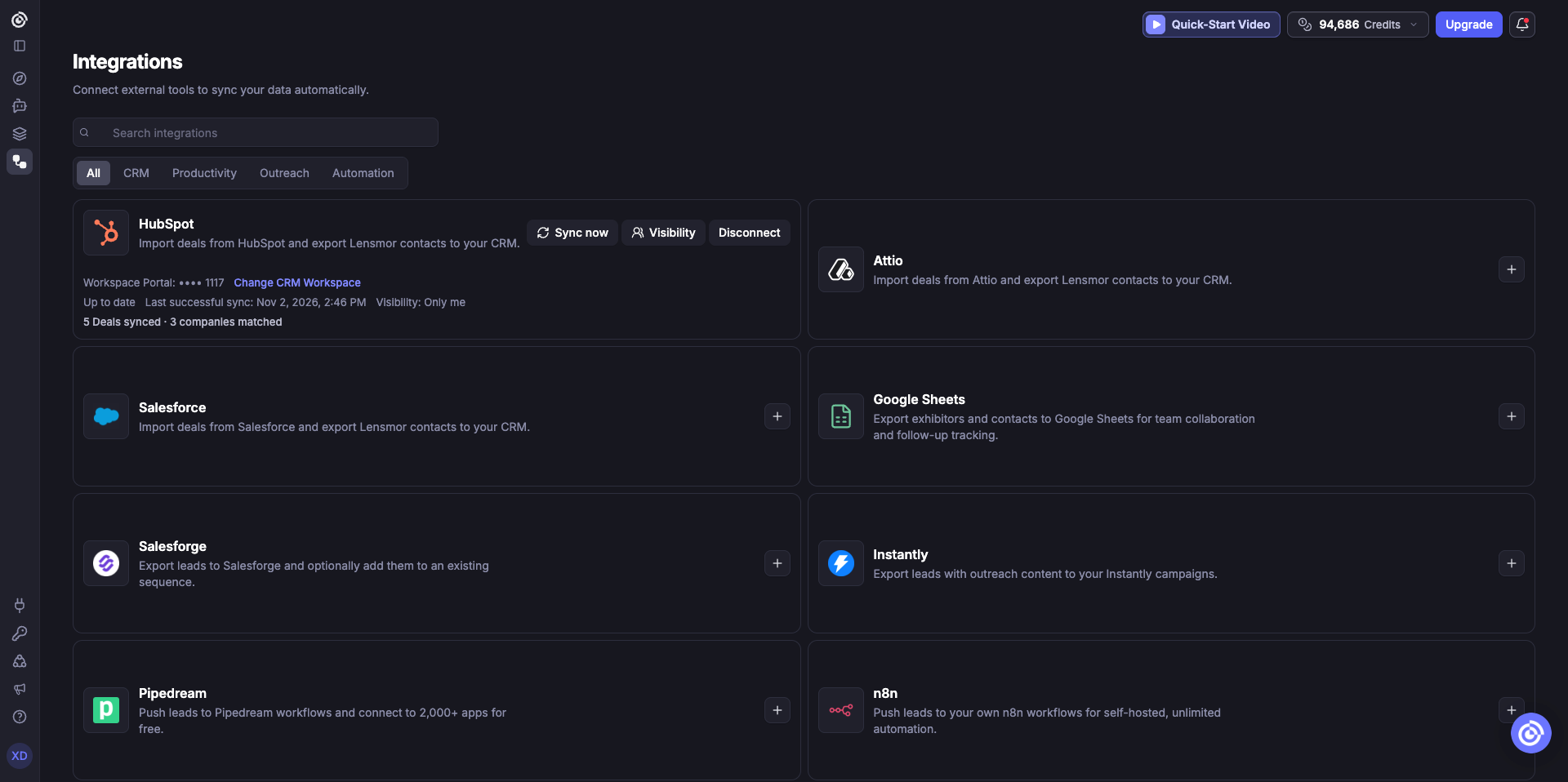
In Lensmor, open Integrations from the dashboard.
Find Attio and click Connect.
In the Connect Attio dialog, click Continue with Attio.
Select the Attio Workspace your team will use and approve the requested permissions.
Return to Lensmor and confirm that the Attio card says the Workspace is ready.
2. Connect your Attio user
Once an Attio Workspace is set, all Lensmor Workspace members can connect their own Attio user.
Open Integrations and click Connect my Attio.
Review the Attio Workspace shown in Lensmor, then click Continue with Attio.
Authorize a user from the same Attio Workspace.
Return to Lensmor and confirm that the Attio card shows Connected.
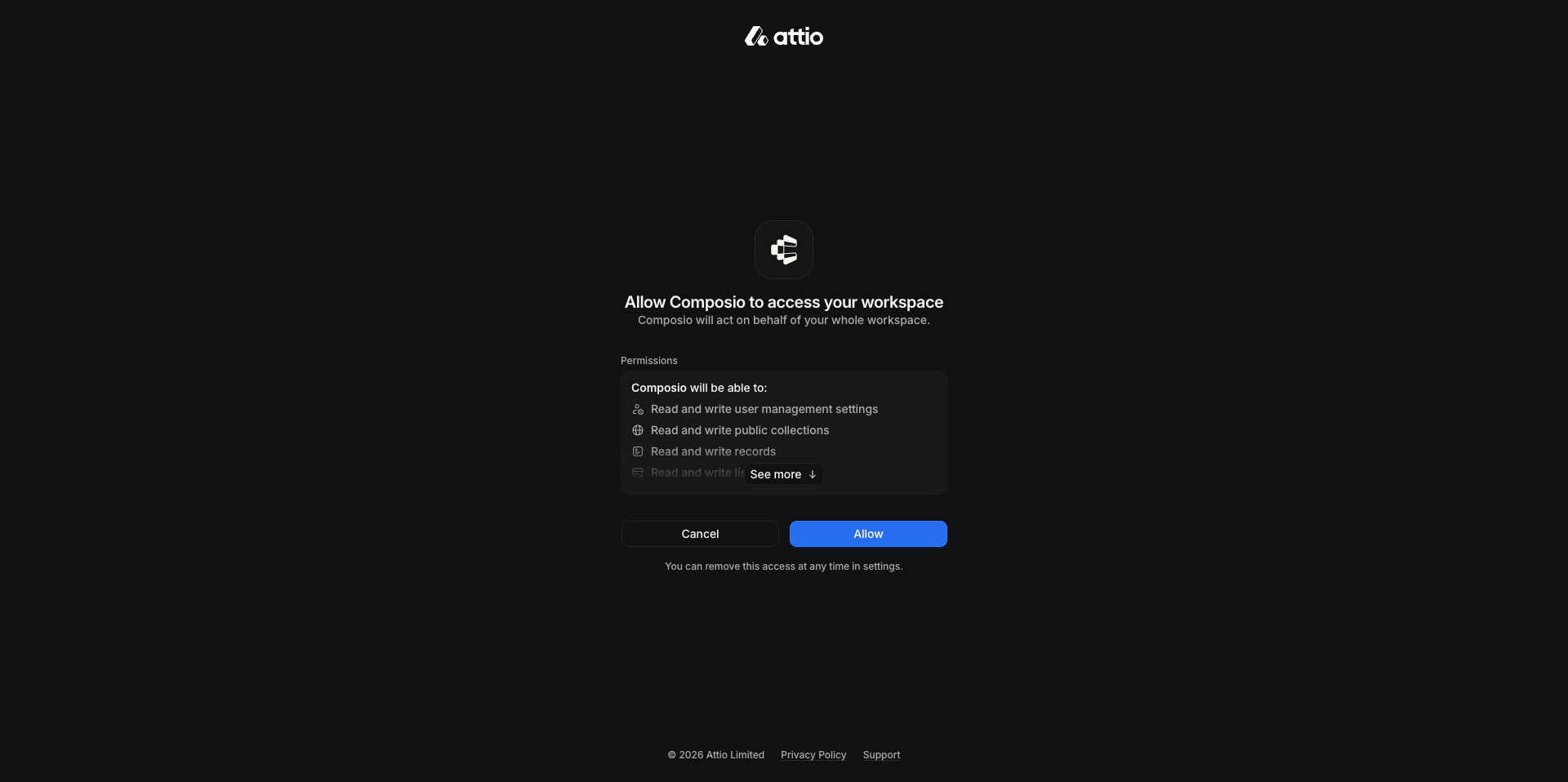
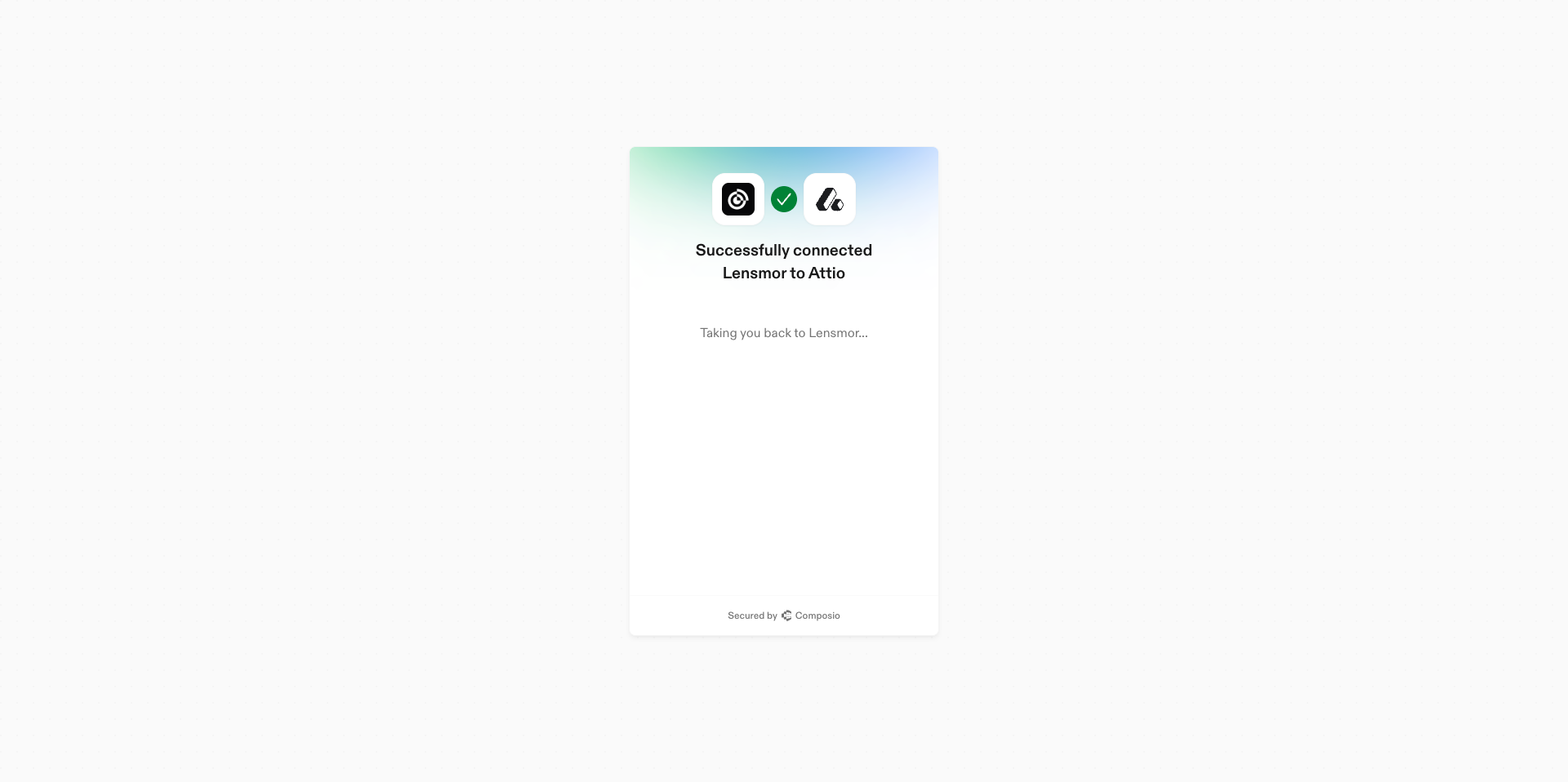
If you can access more than one Attio Workspace, select the Workspace identified in Lensmor. A connection to a different Workspace is rejected so CRM data cannot cross Lensmor Workspace boundaries.
Control who can see your synced Deal data
Your Attio Deal sync is private by default.
Only me: Only you can see Deal data from your personal connection.
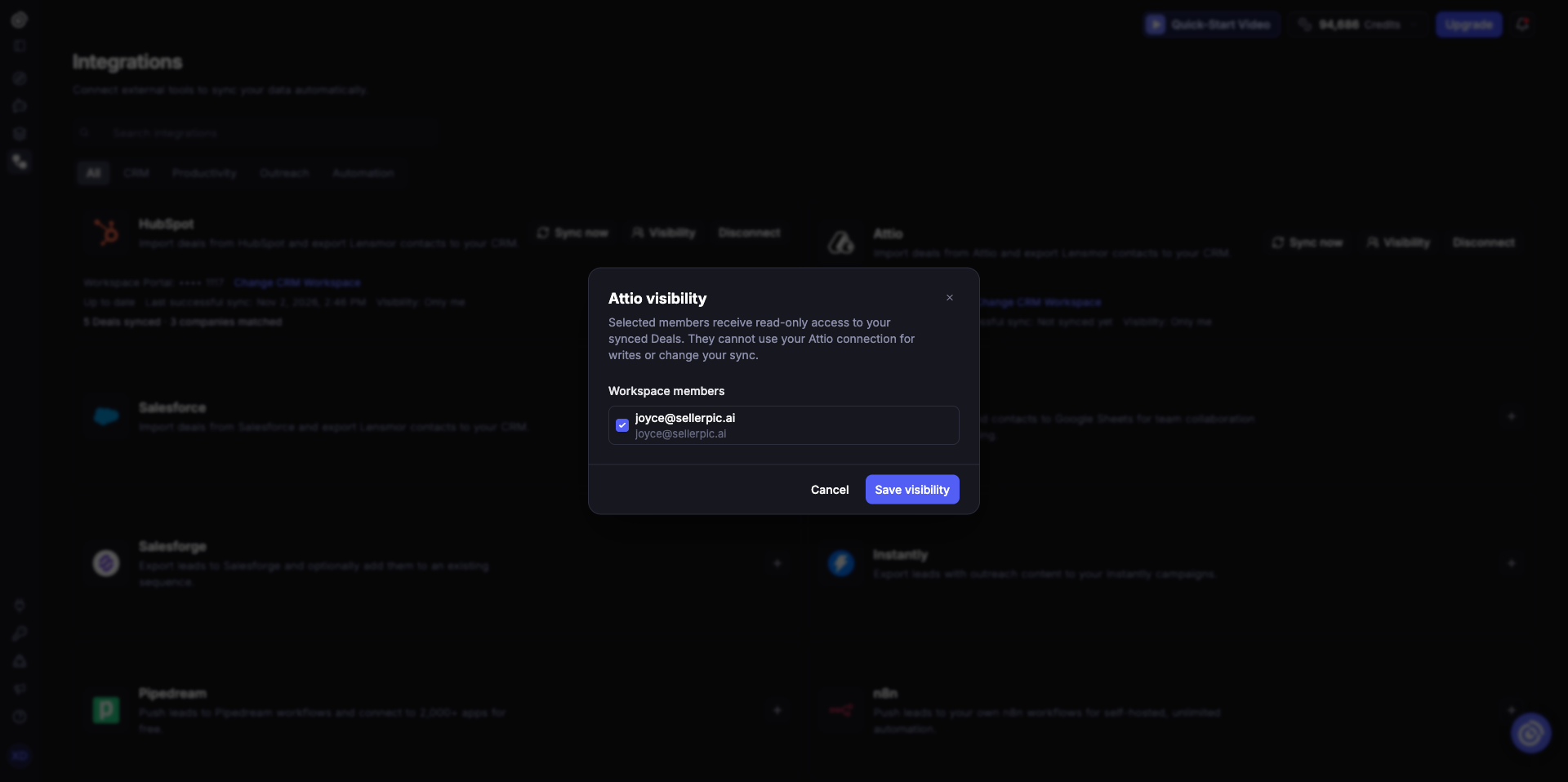
Selected members: Use Visibility to share your synced snapshot with specific Lensmor Workspace members.
Members you share with receive read-only access. They cannot sync, disconnect, export through, or change the visibility of your Attio source.
Sharing Deal data does not share your Attio sign-in or credentials.
Sync Deals into Lensmor
After your personal connection succeeds, Lensmor starts an initial Deal sync. Use Sync now whenever you want to refresh the snapshot after changes in Attio.
During sync, Lensmor reads the Deals available to your authorized Attio user and resolves their Stage, Owner, Value, Currency, and associated Company. Lensmor stores a read-only snapshot and does not edit your Attio Deals.
The Attio card can show:
Preparing first sync: Lensmor is preparing your first Attio snapshot.
Sync in progress: Lensmor is processing Attio data.
Up to date: The latest sync completed successfully.
Showing the last successful sync: A newer refresh did not complete, so Lensmor kept your last successful snapshot.
Sync needs attention: The latest sync failed and may require reconnecting.
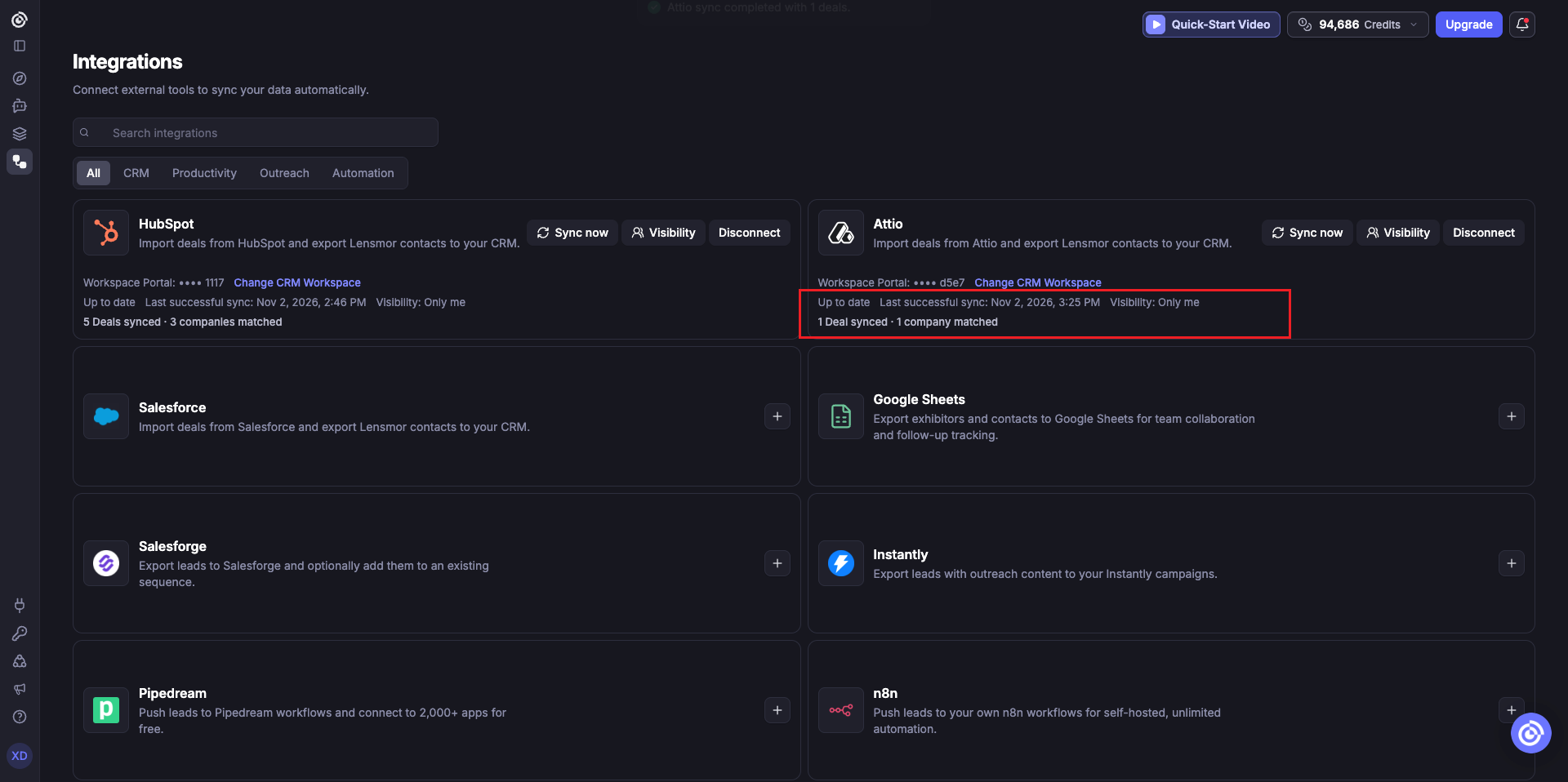
After a successful sync, the card shows N Deals synced · M companies matched. Deals synced is the number of unique Deals in the visible snapshots. Companies matched is the number of unique Attio Companies whose normalized domain matched a Lensmor company. The summary includes your own source plus sources shared with you; it is not a count of events.
Company matching requirements
Lensmor maps Attio CRM data to event companies by domain. For a Deal to appear in Lensmor:
The Deal must be linked through Associated company to an Attio Company.
The Attio Company should have at least one valid value in Domains.
That domain must match a company domain in Lensmor after normalization.
If a Deal is missing, open it in Attio and verify its Associated company and the Company's Domains value, then return to Lensmor and click Sync now.
View and filter Attio data in an event
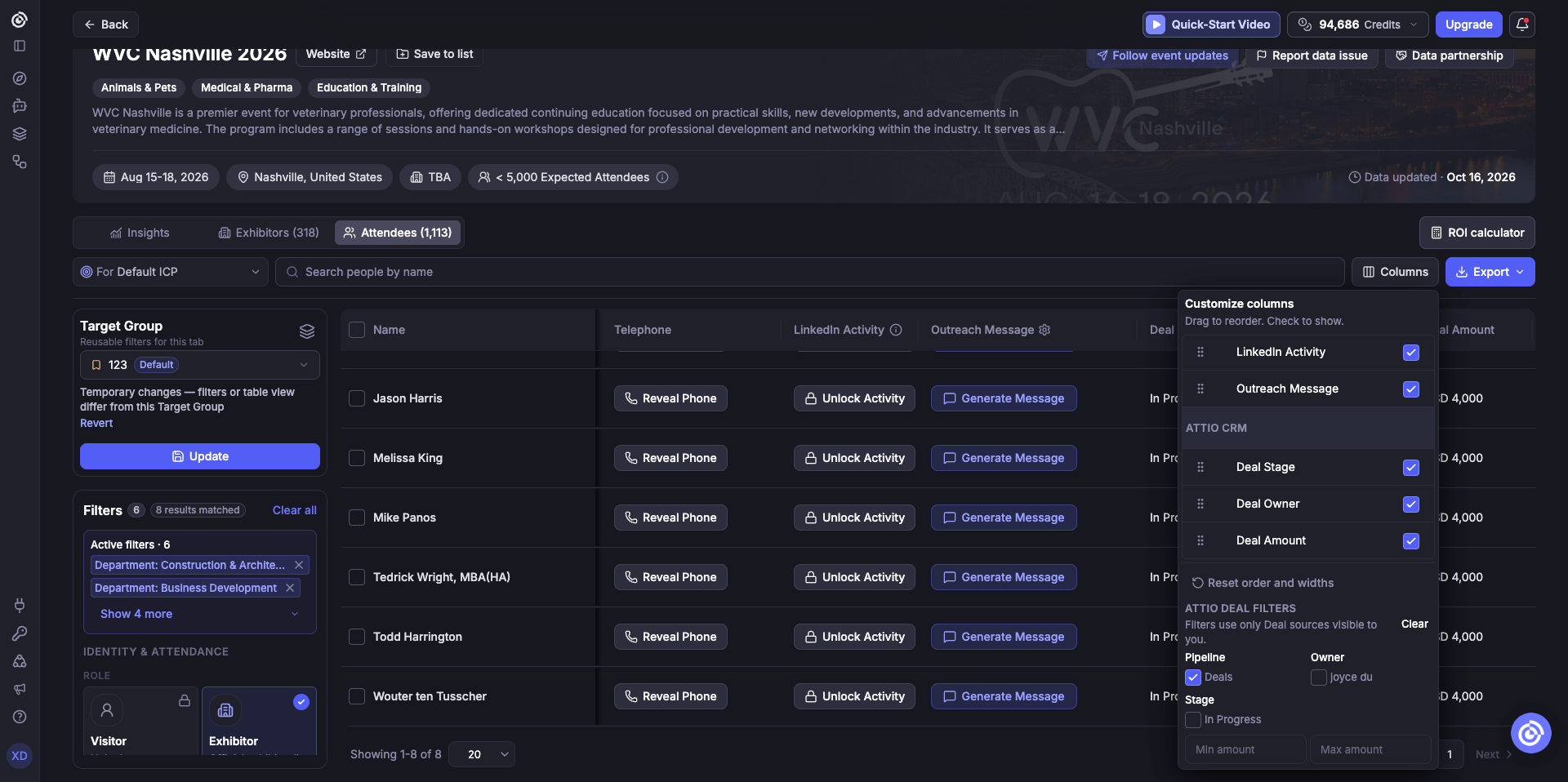
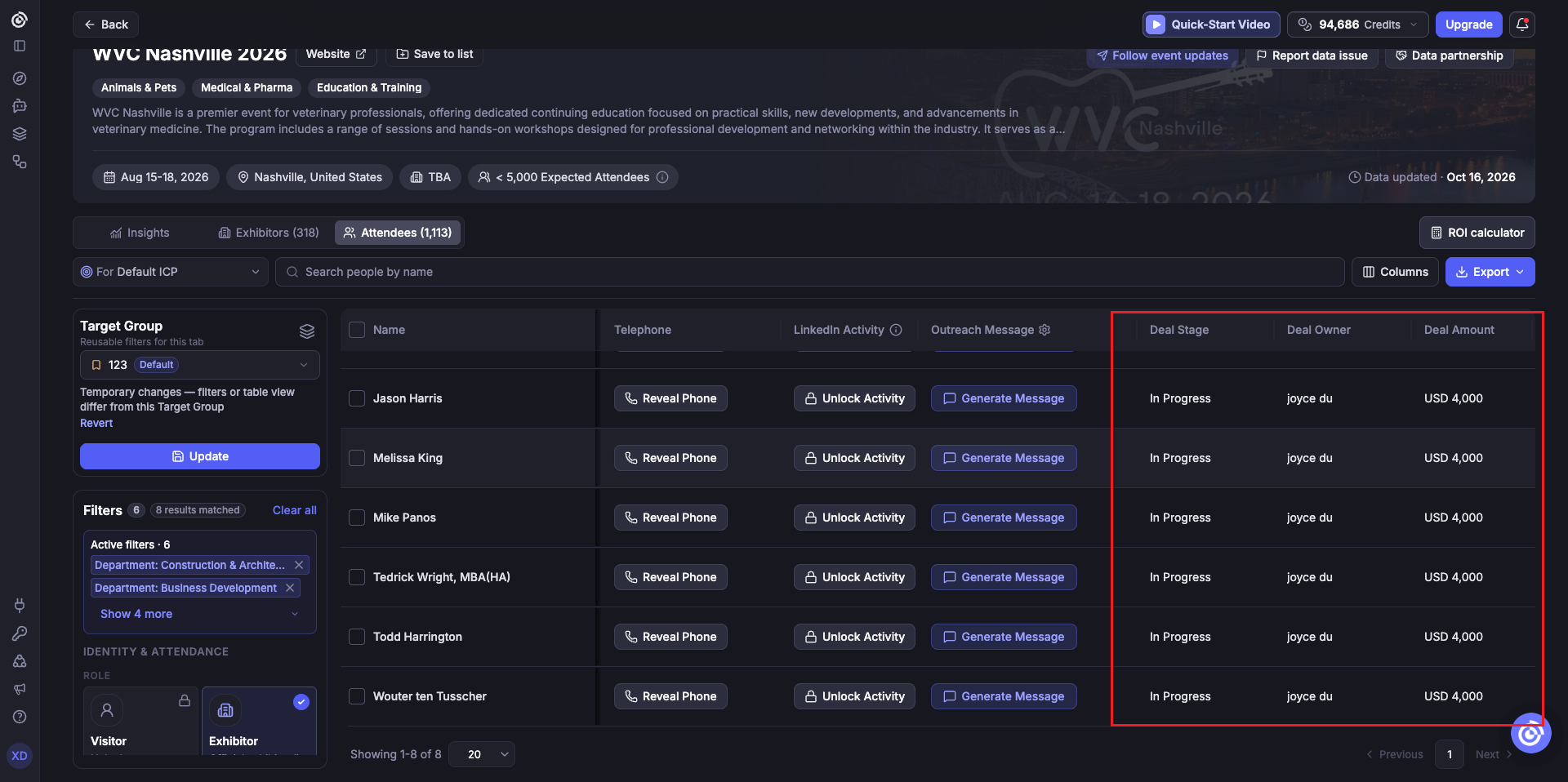
Open an event and go to Exhibitors or Attendees. Choose Attio as the CRM data source. When visible CRM data matches companies at that event, you can add these columns:
Deal Stage
Deal Owner
Deal Amount
Open Columns to filter Attio data by:
Deals
Stage
Owner
Minimum and maximum Deal Amount
The CRM columns and filters use only your own Attio source and sources shared with you. If none of those sources has a Company domain matched in Lensmor, the CRM controls stay hidden.
Use Attio data in Event Insights
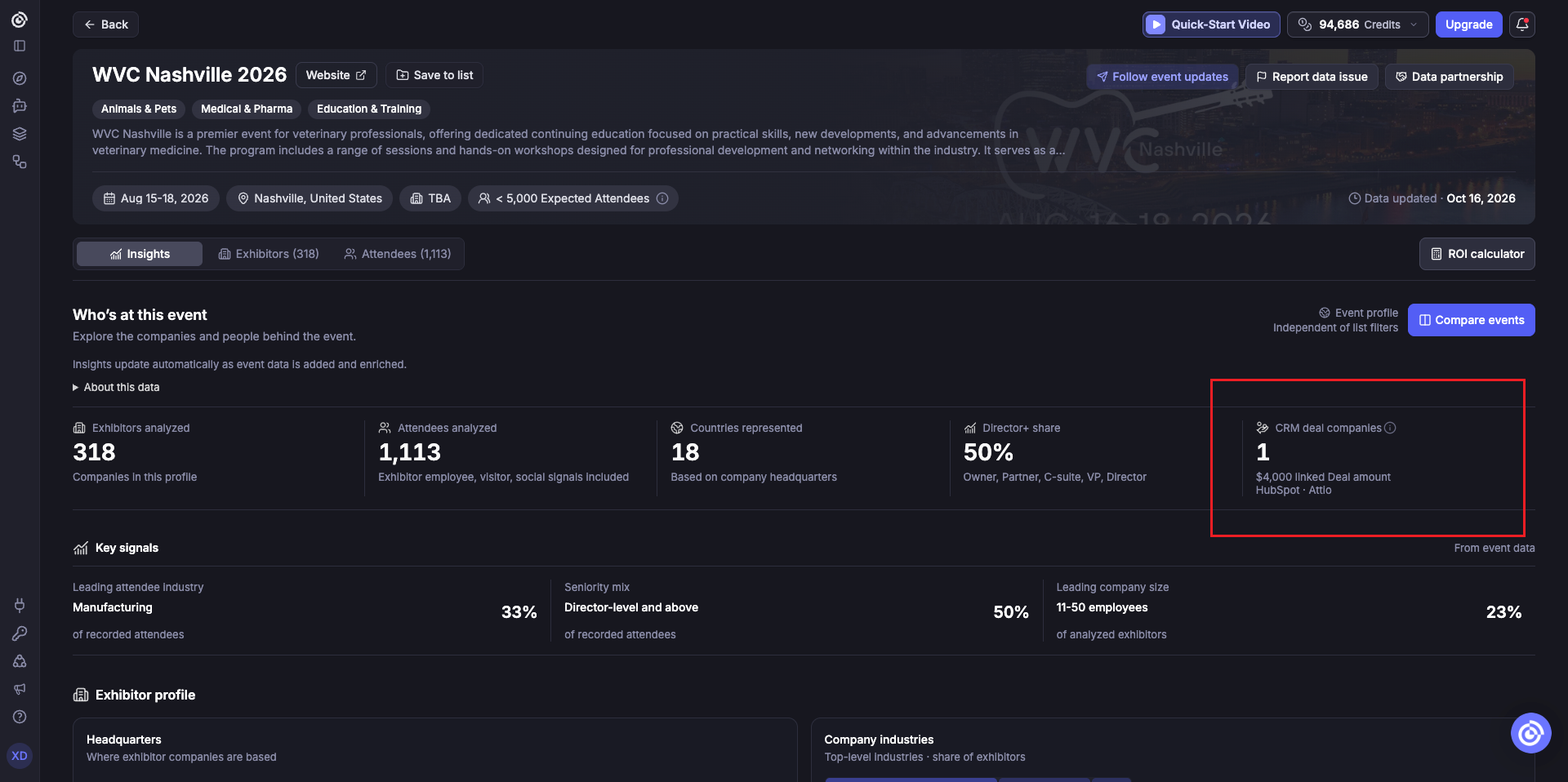
In an event's Insights tab, CRM deal companies shows how many event companies are associated with CRM records visible to you, together with Deal amounts grouped by currency. Attio Deals are included alongside any other CRM sources visible to you, with matching companies deduplicated.
Export Lensmor contacts to Attio
Deal sync brings Attio context into Lensmor. Export sends selected Lensmor contacts to Attio. Export only starts when you confirm it.
Open an event and go to Attendees.
Select contacts or apply filters to define the group you want to export.
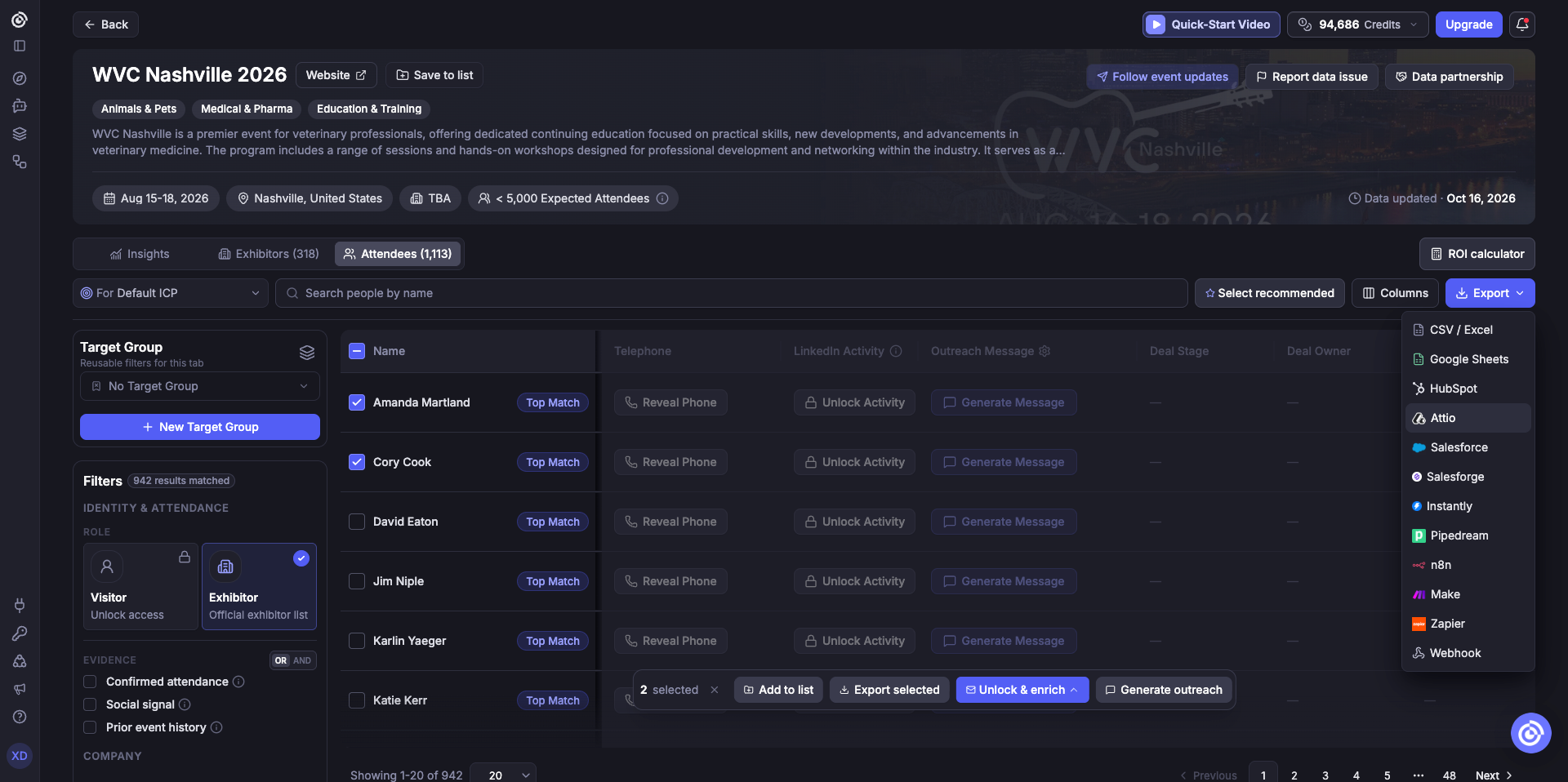
Open Export and choose Attio.
In Export to Attio, choose Selected Items or All Filtered Data.
Optionally enable Skip previously exported to exclude contacts already exported from any event in this Workspace.
Review the count and click Export.
Attio export supports up to 1,000 contacts at a time. If your selection or filtered result is larger, Lensmor exports the first 1,000; narrow the group or export in batches to include the rest.
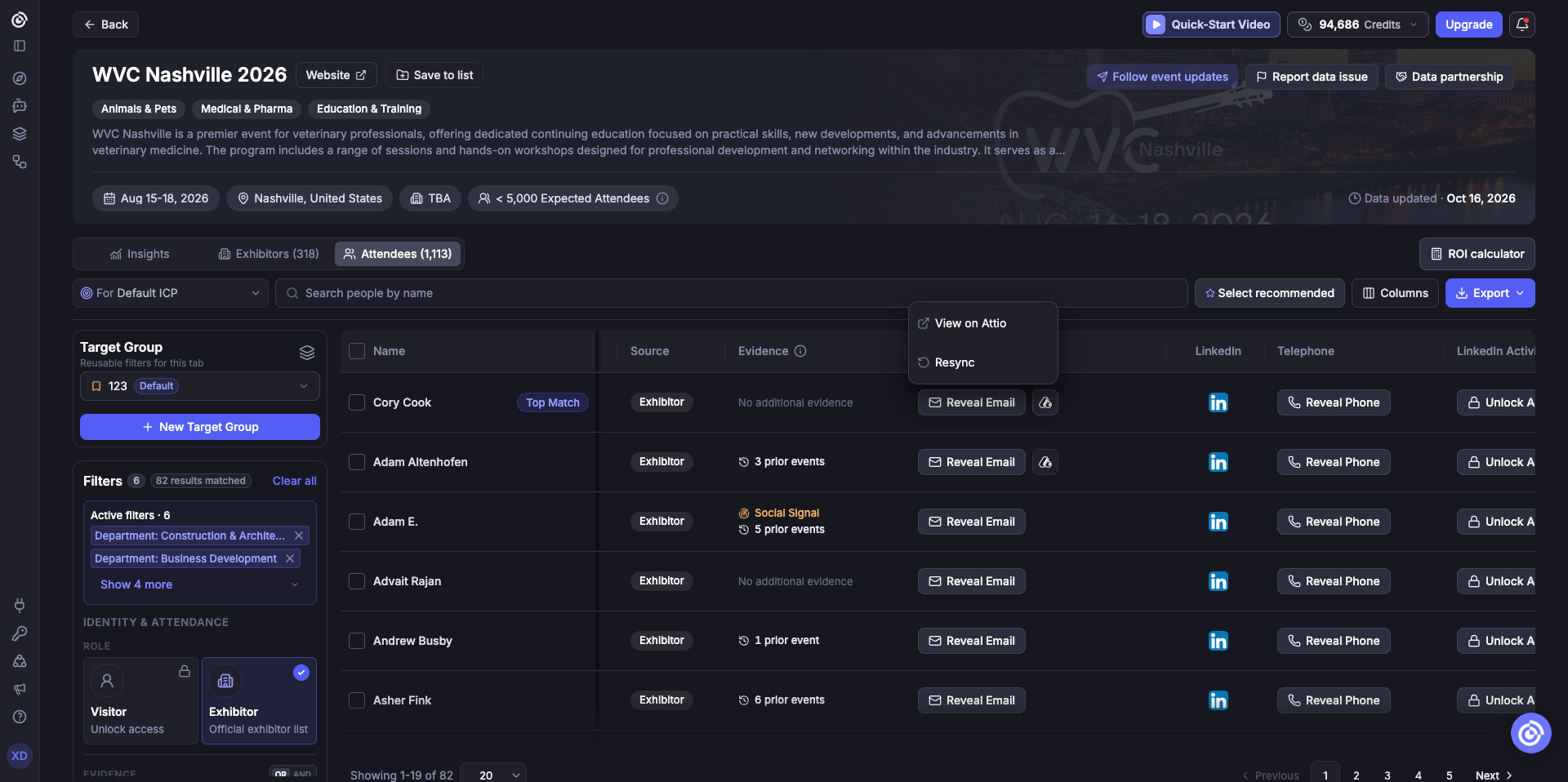
Lensmor creates or updates Attio People and their associated Companies, adds Lensmor-specific attributes for event, company, and outreach context, and preserves existing Attio-authored data. If more than one Attio Person has the same email address, Lensmor does not guess which record to update; that contact's export fails until the duplicate is resolved.
Disconnect your account or change the CRM Workspace
Disconnect: Removes your personal Attio connection, synced snapshot, and sharing from Lensmor. It does not affect the Workspace CRM or other members' connections. People and Companies already exported to Attio are not deleted.
Change CRM Workspace: Available only to Lensmor Workspace owners and admins. It disconnects all members, clears synced CRM data and sharing in this Lensmor Workspace, and requires everyone to authorize again. Records in Attio are not deleted.
Troubleshooting
Wrong Attio Workspace: Reconnect and choose the Attio Workspace shown in Lensmor. Ask a Lensmor Workspace owner or admin before changing the CRM Workspace.
Sync needs attention: Confirm that the Attio authorization can read Companies, Deals, object configuration, and Workspace members, then reconnect if required and run Sync now.
No Deals are available: Confirm that the standard Deals object is enabled in the connected Attio Workspace.
A Deal does not appear: Verify its Associated company, confirm that the Company has a valid Domains value, and check that the domain matches the Lensmor company.
No CRM columns or filters: The Attio sources visible to you currently have no matched Lensmor companies.
Export cannot create attributes: Ask an Attio admin to grant the connected user permission to manage the required object configuration and records, then export again.
A contact fails because of duplicates: Merge or distinguish Attio People that share the same email address, then export again.
Exported contact fields are missing: If a field is hidden or unavailable in Lensmor, exporting will not reveal or fill it automatically.
Using exported contacts: Check the destination Attio Workspace and resulting records before using them in a live workflow.
Was this helpful?
Still need help? Share an idea